
Use the cost you already track.
Build margin rules around product price and cost-per-item recorded in Shopify.
SHOPIFY × GOOGLE ADS
Your costs change. Your stock moves. Your ads should keep up. PruneSpend is designed to use Shopify costs and stock to propose Google Ads product exclusions and re-inclusions—with your approval before changes apply.
Your Shopify data. Your margin rules. Your approval.
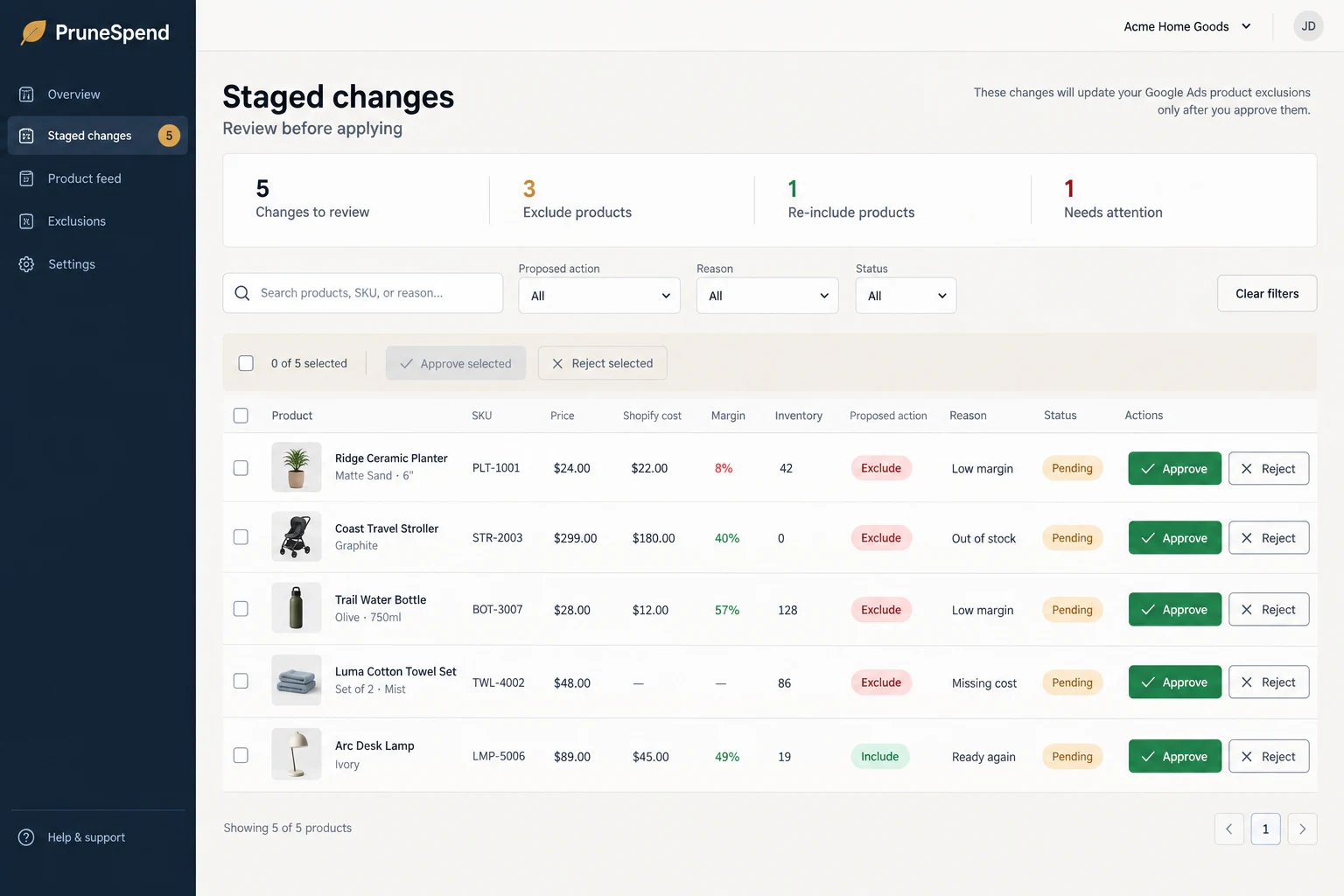
 PruneSpendYour rules + your review
MORE CONTEXT. BETTER DECISIONS.
A product can sell well and still leave little margin. PruneSpend brings the cost and stock behind each SKU into the decision about whether to keep advertising it.
Build margin rules around product price and cost-per-item recorded in Shopify.
Review exclusions when items run out, and re-inclusions when they qualify again.
See the product, the reason, and the campaign affected before you approve.
SEE THE REASON BEFORE THE CHANGE
The decision view keeps the product inputs, proposed campaign change, and approval action together in one focused screen.
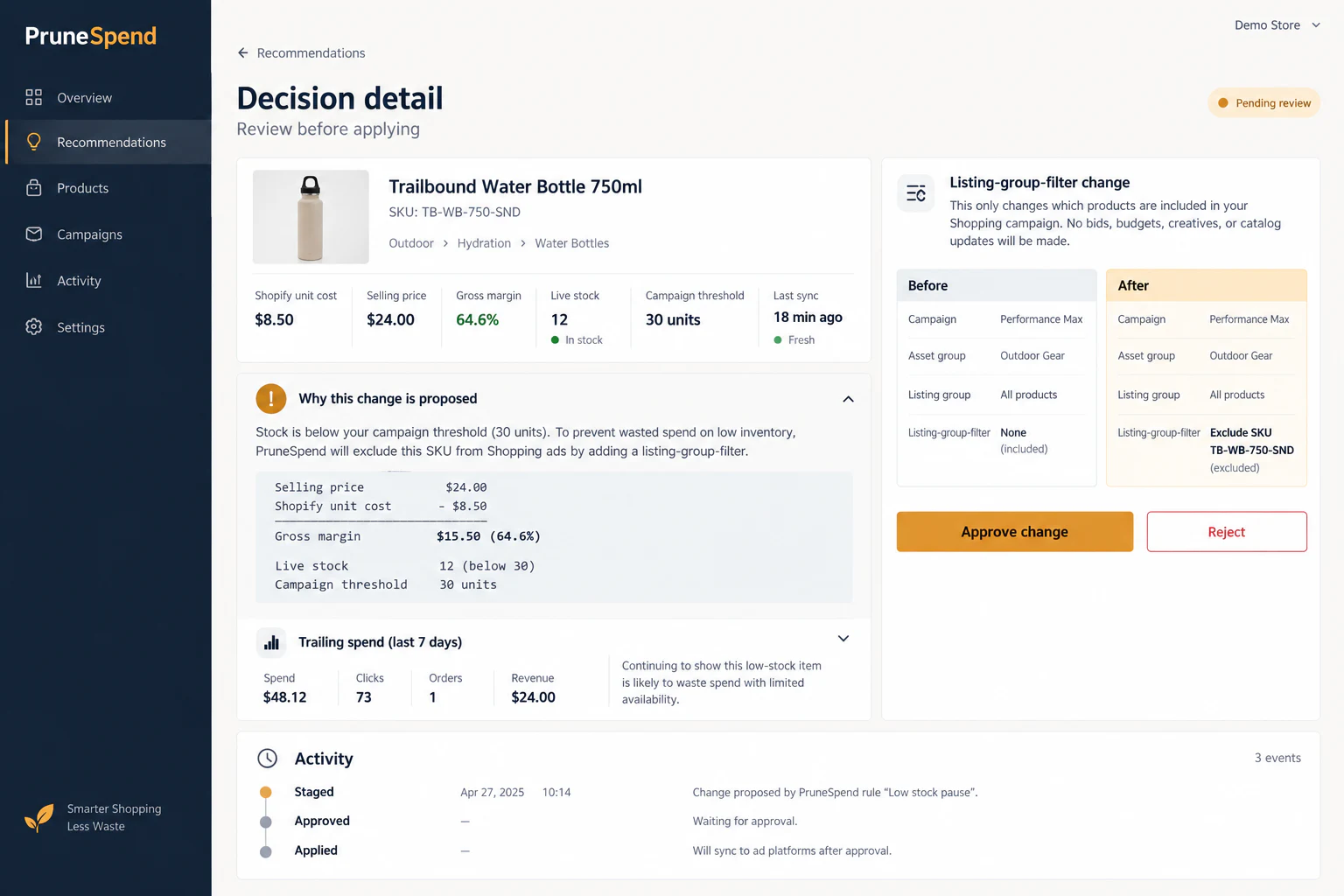
Examples only. This preview is not connected to Shopify or Google Ads.
Product margin % = (selling price − product cost) ÷ selling price × 100. It does not include ad spend, shipping, taxes, or other fees.
HOW IT FITS INTO YOUR DAY
A focused workflow for merchants managing their own Performance Max and Standard Shopping campaigns.
Choose the campaigns to manage and define the minimum product margin that works for your business.
Selected campaigns · Your thresholdSee exclusions and re-inclusions with the product data, reason, and before-and-after campaign state.
Clear inputs · Clear consequencesApprove or reject the proposal. Approved changes are designed to be applied to Google Ads and recorded in the activity history.
Explicit approval · Recorded outcomeBUILT AROUND YOUR CONTROL
PruneSpend focuses on which products are included in selected campaigns. The approval step stays at the centre of that workflow.
Every proposed campaign change requires your approval. Detecting a stock or margin change does not, by itself, authorize an ad-account change.
Product price, cost, and inventory are read from Shopify. PruneSpend is designed without Shopify catalog writes.
Product-level controls within selected campaign listing groups. Budgets, bids, and ad creative sit outside this workflow.
The planned activity history brings together the product, reason, approval, before-and-after state, and apply result.
Performance Max and Standard Shopping campaigns in a Shopify merchant’s own Google Ads account. The workflow starts with explicitly selecting which campaigns to manage.
Product margin is calculated from selling price minus Shopify cost-per-item, expressed as an amount or percentage of selling price. This is not net profit: ad spend, shipping, taxes, returns, and other fees are not included in the initial margin model.
The product is designed around mandatory approval. Margin and stock rules create proposals; they do not authorize live changes. The merchant must approve a proposal before it is applied.
If an excluded product comes back in stock and meets the margin rule, the workflow stages a re-inclusion for review. Re-inclusion also requires approval.
Missing costs are flagged instead of estimated. Margin-based staging is skipped for those products, while stock rules can still apply. Cost-per-item must be available in Shopify to evaluate margin.
Contact ClientAhead for current availability and access information. Public installation is not available at this time; the examples on this page demonstrate the intended workflow.
PRUNESPEND BY CLIENTAHEAD
Shopify cost and stock, campaign-level context, and a decision that stays yours.