
Add your first booking service
A service is what customers book, such as a consultation, repair or lesson. Set up one service first and check the customer journey before adding the rest.
Where to go: Settings → Add a service
Before you start
Have the service name, appointment length and price ready. For an online appointment, add an online location first.
Enter the service details
Enter an Offering name customers will recognise. Add a short description of what is included. Set Duration (minutes) to the length of the appointment and enter the price in your store currency.
Choose payment and location
Under How customers pay, choose No payment required or Pay at the appointment. Select the location under Where it happens. Online payment choices are available only when enabled for your store.
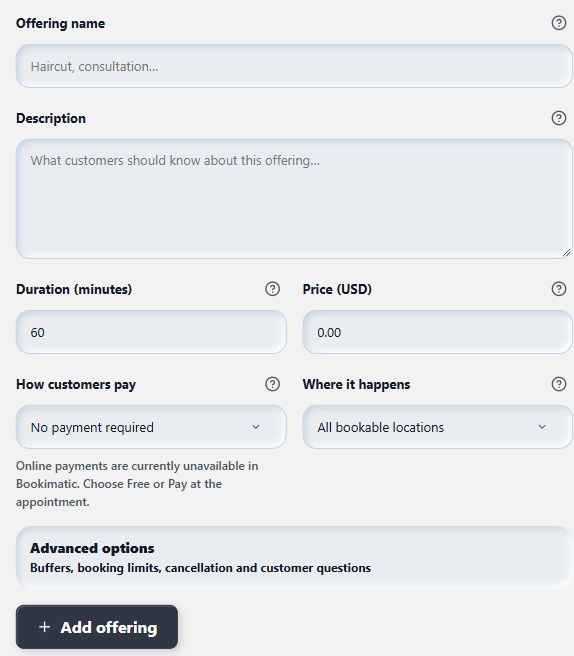
Set up the service, then save it before adding staff or questions.
- Service name
- Duration
- Payment option
- Add offering
Save, then assign staff
Choose Add offering. Find the saved service in Your services & events on the right on desktop, or below the form on mobile. Open its card and expand Advanced options to assign eligible staff.
Set rules and booking questions
In the saved service, use Advanced options for preparation time, booking notice and cancellation notice. Add any questions customers must answer before booking. Save the changes, then check the service in the storefront booking flow.
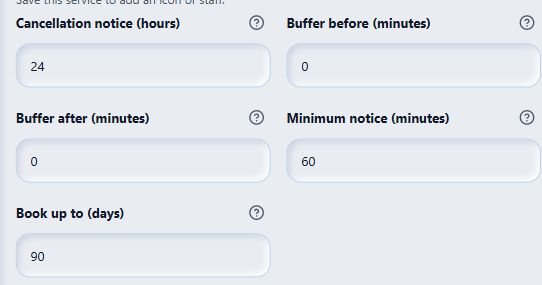
These rules affect which appointment times customers can choose.
- Cancellation notice
- Buffer before
- Minimum notice
- Booking horizon
What to expect
The saved service appears in your service list. It needs an eligible staff member, location and available time before customers can book it.
Common questions
Why can’t I assign staff yet?
Save the new service first. Staff assignment is available inside the saved service’s Advanced options.
What is a buffer?
A buffer leaves extra time before or after an appointment for preparation, travel or cleanup. It reduces the times available for other bookings.
Checked against the app on 5 November 2026
Screens show the Bookimatic interface with fictional sample data. Names, dates and addresses are examples.