
Set up in-person and online locations
A location tells customers where the appointment takes place. An online location is also the starting point for Google Meet, Zoom or a reusable video link.
Where to go: Settings → Business & locations
Before you start
Know the venue address, local timezone and any arrival instructions. For online bookings, decide whether each appointment needs its own meeting link.
Check the business timezone
At the top of Business & locations, check the business name and timezone, then save if needed. Store currency is managed in Shopify; it is shown here for reference.
Add a location
In Locations and appointment format, enter the Location name. Choose Physical location or Online appointment. Set its timezone. For a physical location, enter the address.
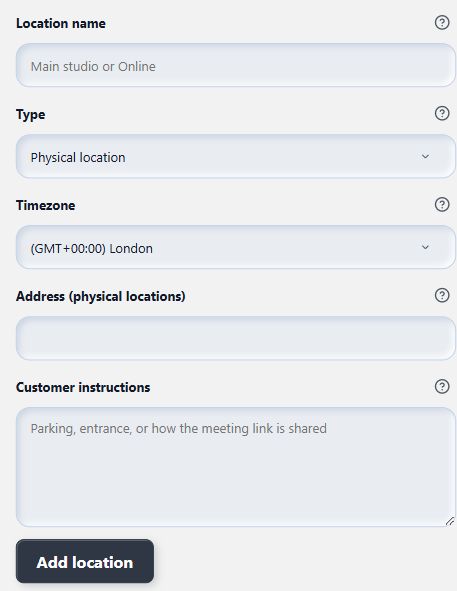
Choose the location type before entering its details.
- Location name
- Type
- Add location
Give customers useful instructions
Add a short note under Customer instructions, such as which entrance to use or how to prepare. Choose Add location. Find it under Your locations, beside the form on desktop or below it on mobile.
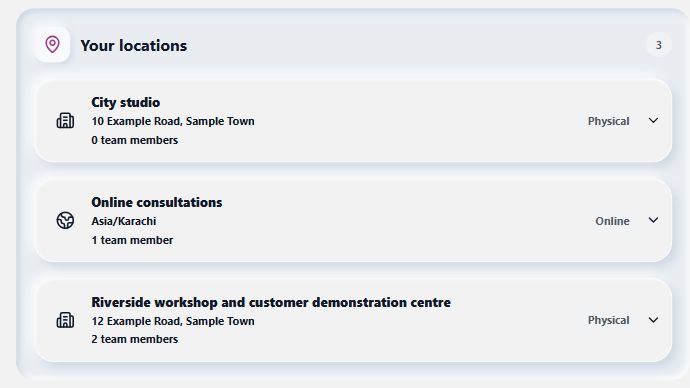
Saved locations appear here immediately after a successful save.
View full-size imageConnect staff and services
In Staff, set the person’s booking location. In the saved service’s Advanced options, assign the appropriate staff, and check Where it happens. For an online location, finish the meeting setup in Integrations.
What to expect
The location appears in Your locations and can be used by compatible staff and services. Its timezone helps keep appointment times clear.
Common questions
Do I enter an address for an online appointment?
Use the Online appointment type. Configure its meeting provider in Integrations instead of putting a private meeting link in a public address field.
Why is my new location not offered to customers?
Check the service’s location selection and staff assignments. The location needs an eligible available staff member as well as an active service.
Checked against the app on 5 November 2026
Screens show the Bookimatic interface with fictional sample data. Names, dates and addresses are examples.