
Set up booking emails, reminders and branding
Booking emails should tell the customer what is happening and what to do next. Set the message, reminder timing and branding separately.
Where to go: Settings → Notifications; Email branding
Before you start
Check the store’s sender email in Shopify Settings → Notifications → Sender email. Using an address as Reply-To is different from authorizing it as the sending address.
Check the sending and reply addresses
In Notifications → Email identity, review Emails sent from and Customer replies go to. Choose Change to review the sender options. A store address can be used as the sender only after the required domain authorization is complete; otherwise Bookimatic uses its fallback sender and replies go to the store address when available.
Choose the audience and edit an email
Select Customers, Team or Your business. Open the relevant email template, such as Booking confirmation. Edit the subject and personal message. Use the insert-personal-detail buttons for names, time and other appointment details rather than typing example customer data.
Set and save email reminders
In the customer view, enable Send email reminders. Choose the first reminder time and an optional second reminder. Save the reminder settings. Timing changes apply to new or rescheduled bookings; switching reminders off also stops queued reminders that have not been sent.
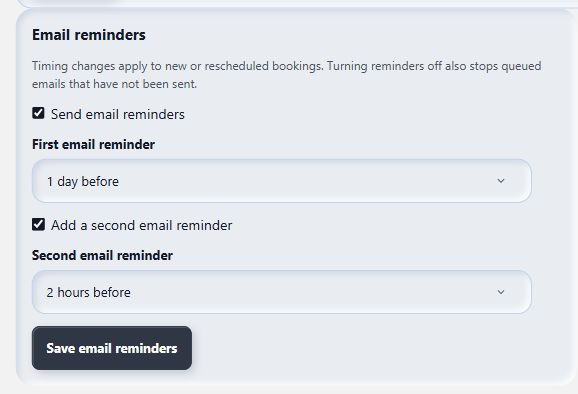
Choose useful reminder times without sending customers unnecessary messages.
View full-size imageApply branding and preview
Open Email branding. Keep Default to prefer the Shopify brand logo, or select Custom for your upload. Set the accent colour for email buttons and save. Use the Preview tab to check the result. If no usable logo exists, the store name is shown.
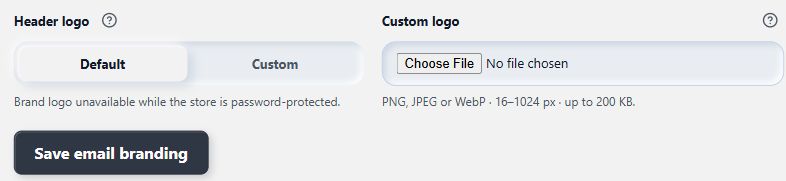
Default prefers the Shopify brand logo, then the custom fallback; without either, the store name appears.
View full-size imageWhat to expect
The selected templates, reminder settings and branding are saved separately. A preview uses fictional information and does not send a customer email.
Common questions
Does a verified Shopify notification email automatically authorize Bookimatic to send from it?
No. Shopify’s verification does not automatically authorize another email provider. Complete the sending-domain checks shown by Bookimatic before using that address as From.
Are SMS and WhatsApp already available?
Email works independently of these channels. SMS is shown only when the store and sending service are ready and the plan supports it. WhatsApp is not currently offered. Contact support before planning around either channel.
Checked against the app on 5 November 2026
Screens show the Bookimatic interface with fictional sample data. Names, dates and addresses are examples.