
Let customers manage appointments in their account
Customers can see appointments in their signed-in Shopify account. They can open the details, add an appointment to their calendar and use the changes allowed by your booking policy.
Where to go: Shopify checkout and accounts editor
Before you start
Use Shopify’s current customer accounts, not legacy customer accounts. Bookimatic’s customer-account extension must be available for your store.
Open Shopify’s account editor
From Shopify, open the checkout and accounts editor for your customer-account experience. Shopify controls this editor; its navigation labels may change.
Add the Bookimatic appointment block
In a supported account placement such as the Orders or Profile page, add the Bookimatic appointments block. It shows the next appointments and a link to the full appointment page. Add the full-page My appointments destination to account navigation where the editor permits.
Save and test the correct account
Save the account configuration. Sign in as a test customer using the verified email address on that customer’s booking. Check the upcoming list, history and appointment details.
Check the self-service actions
Open an eligible upcoming appointment. Reschedule opens its secure management page. Cancel appointment asks for confirmation inside the account. The cancellation window and booking state determine what is allowed. Join meeting appears only when meeting details are ready.
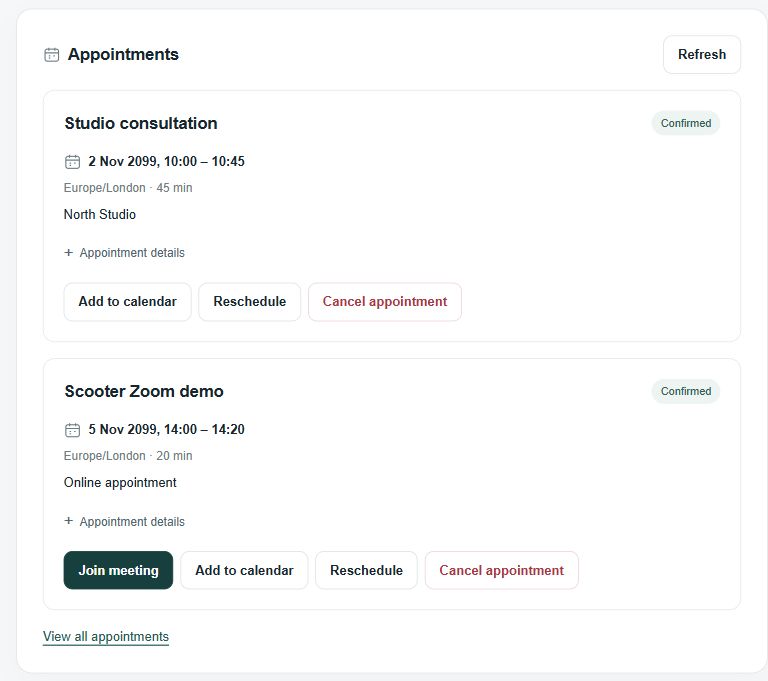
Local component preview with fictional appointments. Shopify supplies the final account styling; this is not a screenshot of a live customer account.
View full-size imageWhat to expect
A signed-in customer can find their own appointments and use eligible self-service actions. An empty list can mean their account email does not match the booking contact.
Common questions
Can the block appear on the login form?
It belongs inside supported signed-in customer-account pages. It is not a replacement login form and does not add private appointments to the public login page.
Why can’t a customer cancel or reschedule?
Check whether the appointment is still upcoming and inside the allowed self-service window. Cancelled, past or restricted bookings cannot use every action.
Checked against the app on 5 November 2026
Screens show the Bookimatic interface with fictional sample data. Names, dates and addresses are examples.