
Fix “no available times” in the booking calendar
A service can be visible while all its times are unavailable. Work through these checks in order so you can find the rule that is excluding the time.
Where to go: Settings → Add a service; Staff; Business & locations
Before you start
Choose one service, location and date to investigate. Check the timezone shown to the customer before comparing it with your schedule.
Check the service, location and staff
Open the saved service. Confirm the location selection and the staff assignments in Advanced options. There must be at least one eligible active staff member who can deliver that service at the chosen location.
Check working hours and absences
In Business & locations → Business hours, check the day is open and the working period is long enough for the appointment. In the person’s Time off tab, look for an absence covering the time.
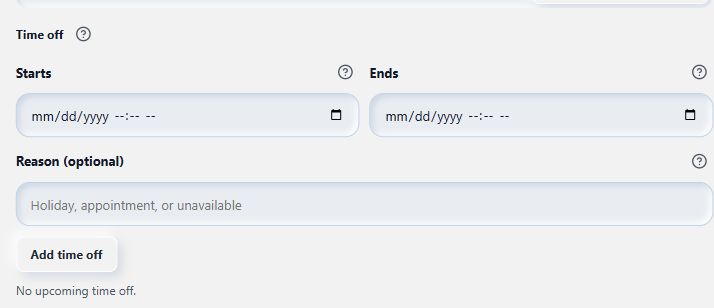
A time-off entry can hide a time even when the business is open.
- Time off begins
- Time off ends
Check the service’s booking rules
Review duration, buffer before and after, minimum notice and Book up to (days). For example, a 60-minute service cannot fit into a 30-minute opening. A minimum-notice rule can hide times that are too soon.
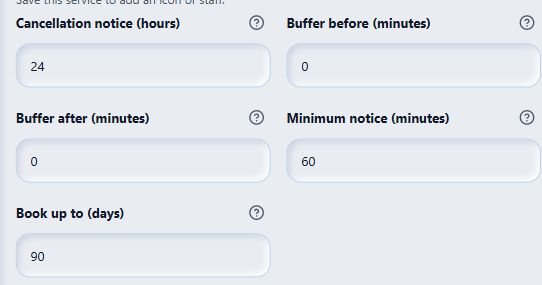
Check these rules after confirming the staff and weekly business hours.
- Cancellation notice
- Buffer before
- Minimum notice
- Booking horizon
Check existing bookings and calendars
Look for another appointment or a connected calendar’s busy period. If the host needs to reconnect Google, complete that first. Refresh the customer view and try the same service and date again. If no cause is clear, contact support with the service, date, timezone and visible error, using fictional or redacted screenshots.
What to expect
You identify the rule or conflict that excludes the time. Change only a rule that suits your real business availability, then check the same date again.
Common questions
Will changing the website theme fix unavailable times?
Theme changes affect display and the app embed. They do not change staff hours, booking rules or calendar conflicts.
Why are times different on another device?
Compare the timezone shown on both devices. Check the business and location timezones before assuming the underlying appointment time changed.
Checked against the app on 5 November 2026
Screens show the Bookimatic interface with fictional sample data. Names, dates and addresses are examples.