
Connect Google Calendar for a staff member
Each staff host connects their own Google account. Bookimatic uses that host’s primary calendar for busy-time checks and appointment events.
Where to go: Settings → Integrations → Google Calendar
Before you start
Google connections require an eligible Bookimatic plan and provider access. General access is subject to Google’s approval; if access is restricted, contact support.
Choose the correct staff host
Open Google Calendar in Integrations. Find the staff member whose calendar should be used and choose Connect on their row.
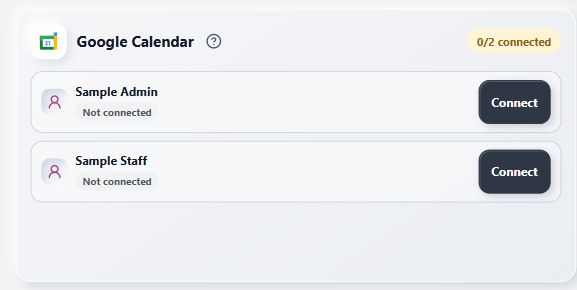
Choose Connect beside the person who owns the calendar.
- Connect the host
Sign in and review Google’s permissions
Sign in to the host’s intended Google account. Review the identity, calendar-event, free/busy and calendar-list permissions. Grant access only if you agree. If Google restricts access, contact support with the visible error.
Confirm the connection
Return to Bookimatic and check the person’s connection status. The primary calendar needs to allow the host to create events. Repeat for each staff member who needs a separate calendar.
Check a sample appointment
Use a fictional appointment to check the assigned host and time. After confirmation, check the Bookimatic appointment event in Google Calendar. Rescheduling updates that event; cancellation removes it. Busy-time checks help avoid clashes, but this is not a promise of instant two-way syncing.
What to expect
The connected host’s busy intervals can be checked and Bookimatic can manage its own appointment events. Google Calendar and Google Meet share this connection.
Common questions
Do I need a separate Google Meet login?
No. Meet uses the same Google host connection, but the calendar must support Google Meet conferencing and automatic Meet must be selected.
How do I remove access?
Remove Bookimatic from the connected Google Account’s third-party connections. Contact support if you also need locally stored integration data removed. See the integration data-use notice for details.
Checked against the app on 5 November 2026
Screens show the Bookimatic interface with fictional sample data. Names, dates and addresses are examples.