
View and manage appointment bookings
The schedule brings the appointment time, customer, service and status together. Open a booking before making changes so you can check the details.
Where to go: Schedule
Before you start
Check the timezone shown above the appointment list. Changing a booking status can affect customer notifications and availability.
Find the appointment
Open Schedule. Choose the day in the calendar or use Go to date. Search by service or filter by status if the list is busy.
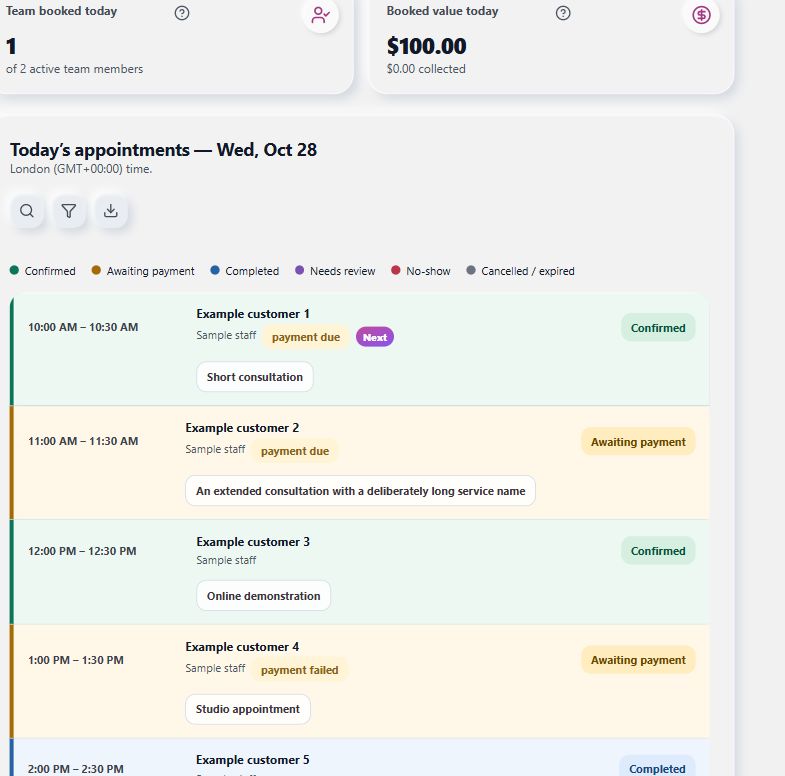
Select a day, then open the appointment you need.
View full-size imageOpen the booking details
Select the appointment. Review the service, date and time, customer details, team member, location and payment summary. Status colours are also accompanied by text labels.
Record the outcome or cancel
Use an available action such as Complete, No-show or Cancel. Read the confirmation before continuing. Available actions depend on the current booking status.
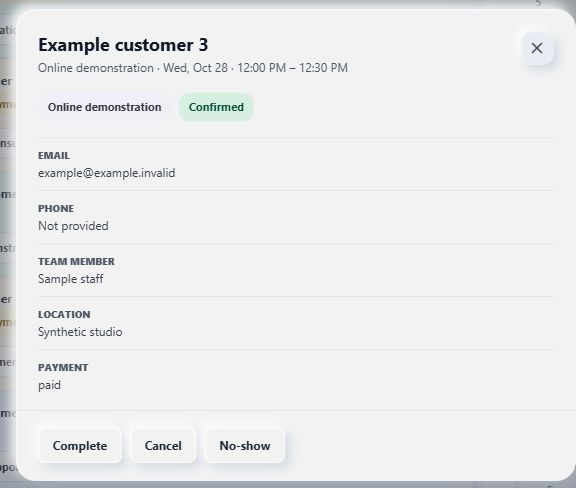
Review the appointment before using a status action.
View full-size imageHandle payment and time changes carefully
A cancellation in the merchant schedule does not itself issue a Shopify refund or change an order’s payment state. Review payment and refunds in Shopify. Customers can use an eligible secure management link or the customer-account appointment area to change their time; the schedule details modal does not currently have a merchant Reschedule button.
What to expect
The schedule reflects the confirmed status change. Check any payment or refund separately rather than assuming a booking cancellation refunded the customer.
Common questions
What does Needs review mean?
The booking needs a manual decision. Open its details, check the appointment and any Shopify payment or refund evidence, then use the review action shown. Contact support if the situation is unclear.
Can I export appointments?
Use the export control beside the appointment list to download the selected date range as CSV. Store the export securely because it can contain customer information.
Checked against the app on 5 November 2026
Screens show the Bookimatic interface with fictional sample data. Names, dates and addresses are examples.